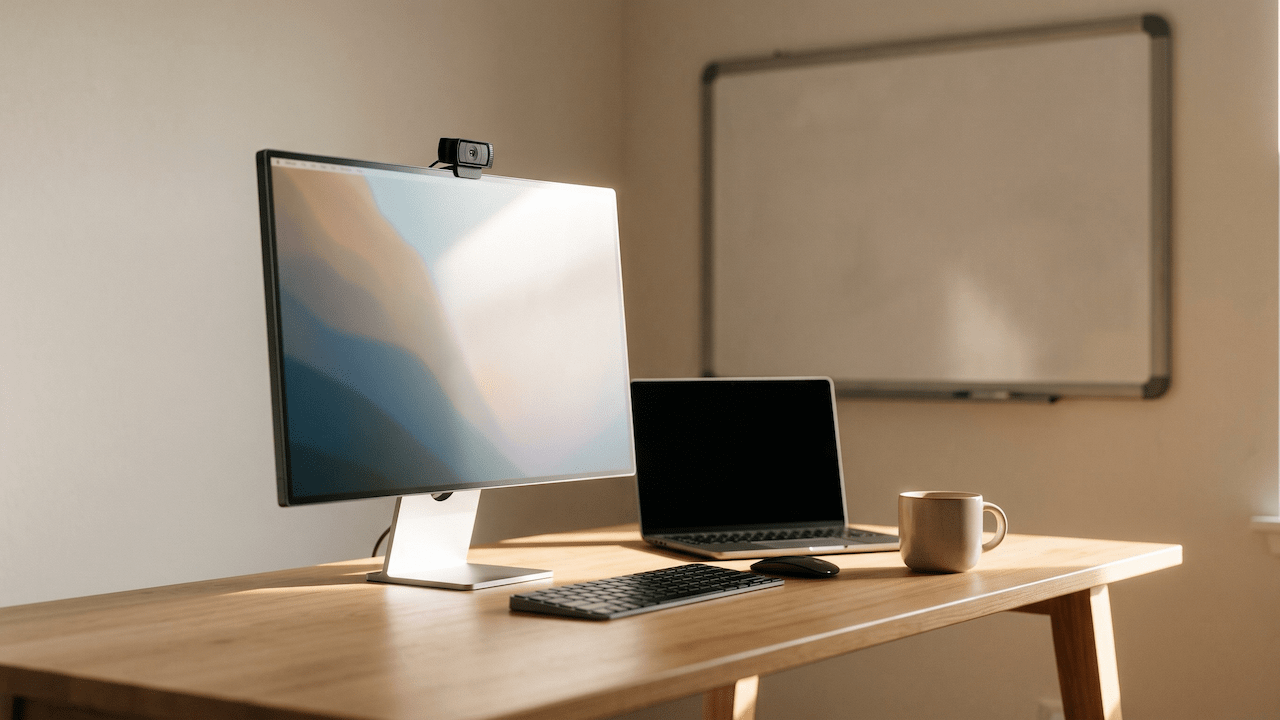
I never spent money on a webcam.
Phone propped on a stack of books, the Iriun Webcam app running, call open. When I couldn’t be bothered, the laptop camera. It worked, and for a simple reason: a decent phone camera beats most webcams on image quality, and the mic is usually better too. If your phone is recent, you already own a better camera than half the webcams sold.
So why buy one at all?
Because the picture was never the problem. The phone was. It’s tied up the whole call. It needs a mount. It dies. It buzzes with notifications mid interview. It’s a camera you borrow from the thing you actually use to run your day, and that stops being practical the moment video becomes part of your work.
That’s why people buy an external webcam: it takes the job off your phone.
And here’s where most webcams lose people. The cheap ones look bad. The good ones either need a setup project before they do anything useful, or they cost a lot more than the problem seems to deserve. I tried a few, found most of them either disappointing or fiddly, and went back to the phone. I only landed on the Logitech C920 when the phone stopped being a practical answer.
This post is for everyone standing at that same decision. Remote workers living on video calls. Creators recording content. Streamers who treat the stream as a job. Media people running remote interviews and live segments. Anyone interviewing candidates from a home office. If a camera is part of how you earn, it belongs in your setup like a chair or a keyboard, and gaming, streaming and content creation are work like any other.
The job here is to match the right webcam to your situation. Each pick gets an honest look at what it does well and where it falls short, plus a hassle label, because how much setup you’ll tolerate matters as much as the budget.
Hassle labels used in this post:
- Plug and play: USB in, works. No software needed.
- App setup: works out of the box, but you’ll want ten minutes in the app to get the good features.
- Tinkerer territory: real setup involved. Only for people who enjoy that.
Some links on this page are Amazon affiliate links. If you choose to buy through them, RemoteWorkHaven may earn a small commission at no extra cost to you.
These links only appear where tools or setup gear naturally fit the topic. No paid placements. No brand endorsements.
Quick Pick: The Best Webcam for Most People
If you only read one section: for most remote workers, the Logitech C920 is still the no nonsense answer. It’s a plug and play external webcam, it works with everything, and it fixes the actual problem, which is getting your phone off the call.
If you move around, present standing up, interview people, or need to show a whiteboard behind you, step up to a smart AI webcam. The OBSBOT Tiny 3 and Insta360 Link 2 are the two worth looking at.
Webcam Comparison Table (Skim This First)
| Webcam | Best for | Key spec | Hassle | Honest take |
|---|---|---|---|---|
| Logitech C920 | Calls, meetings, simple setups | 1080p, autofocus, built in mics | Plug and play | The reliable default that works with everything. |
| Elgato Facecam | Streaming and recording | 1080p at 60 frames, made for creators | App setup | Smoother motion for people on camera for hours. No built in mic. |
| Logitech Brio | Sharper video for calls and content | 4K sensor | App setup | Overkill for most calls, great if your video gets cropped or reused. |
| Insta360 Link 2 | Presenters, interviewers, whiteboards | 4K, 2 axis gimbal, AI tracking | App setup | The most useful smart cam for work use. |
| OBSBOT Tiny 3 | Creators who move, solo shooters | 4K, AI tracking, voice and gesture control | App setup | The best tracking, and it streams straight from a phone. |
What Actually Separates One Webcam From Another
Seven things matter, and which ones matter most depends on who you are.
- Sensor and resolution. 1080p is enough for calls. 4K matters if you crop, reframe or reuse your footage.
- Frame rate. 30 frames is fine for meetings. 60 looks smoother for streaming and anything with movement.
- Low light. A bigger sensor handles a dim room better than a higher resolution number does. This is the spec that separates a good webcam from a decent one.
- Autofocus. Matters if you hold things up to the camera or lean in and out.
- Field of view. Wider shows more of your room. Narrower looks cleaner and keeps the background private.
- Mic. A built in mic is fine for calls. For content, you’ll want a real one.
- Mounting. Monitor clip, tripod thread, or desk stand. Boring, and the thing most likely to annoy you daily.
A remote worker on four calls a day and a streamer on a six hour session need different things from the same piece of hardware.
If your lighting is the real issue, fix that first. A twenty minute lighting change will do more for how you look on camera than a more expensive webcam, and the remote work lighting setup guide covers it.
Tier 0: The Camera You Already Have
Your phone is a great camera.
A recent phone has a better sensor, better stabilization and better processing than a lot of dedicated webcams. Apps like Iriun Webcam turn it into a camera your computer can use, and the built in mic is often good enough that you don’t need a separate one. Your desktop speakers handle the other side of the conversation.
Fits you if: you rarely have video calls, you’re testing whether video even matters for your work, or you need an occasional high quality shot.
Where it gets impractical: when video is a daily thing.
- The phone is occupied for the whole call or stream.
- You need a mount, and the mount is never quite right.
- Battery and heat become a problem on long sessions.
- Notifications and incoming calls interrupt you on camera.
- You can’t use your phone for anything else while it’s the camera.
That list is the whole case for buying a webcam: your phone already has a job.
Hassle label: App setup. Free, and it works, but it’s a project every single time you start a call.
Best Budget Webcam: The Logitech C920 Class (Tier 1)
This is where most people should land, and it’s where I landed.
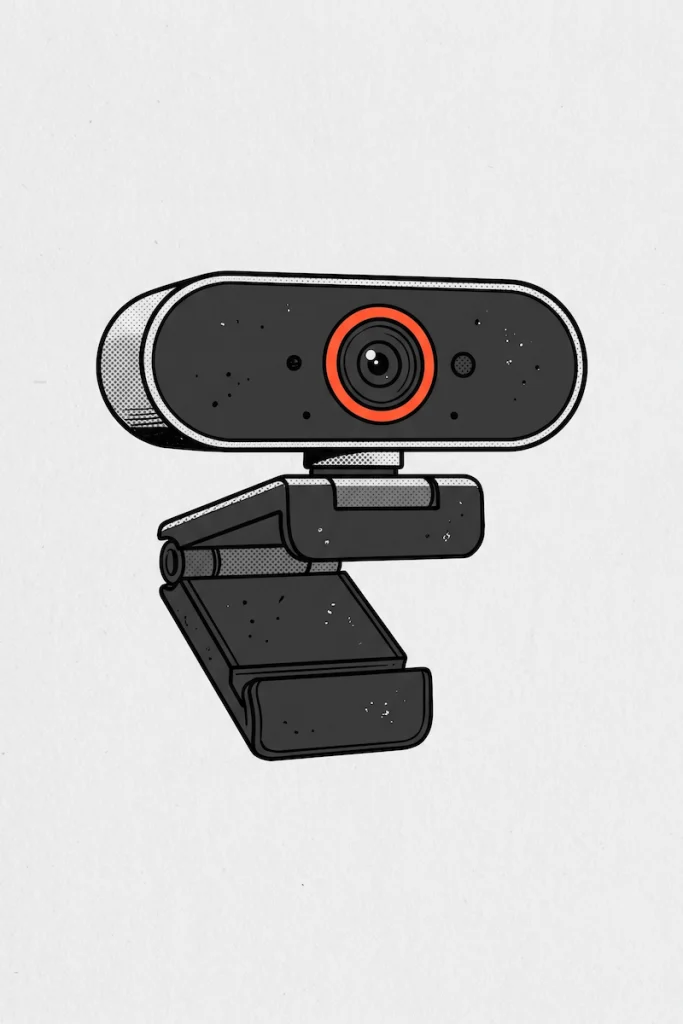
The Logitech C920 is the no nonsense original. A 1080p external webcam that clips to your monitor, plugs in over USB, shows up in every app, and does its job without asking for anything. It has autofocus and built in mics. It has been the default recommendation for years for a boring reason: it works.
It’s also the answer for the best webcam for working from home if “working from home” means video calls, standups, client meetings and the occasional interview. You’ll look clear, you’ll be in frame, and you won’t think about it again.
Pros
- Plug and play with Zoom, Teams, Meet and basically everything else.
- Reliable and easy to find, replace and mount.
- A big step up from a laptop camera and a much more practical setup than a phone.
Cons
- Fixed in place. You move out of frame, you’re out of frame.
- Dim rooms are its weak spot.
- 1080p at 30 frames. Fine for calls, noticeable for streaming.
Checkable reason to buy it: it replaces the phone on a stack of books with a camera that clips on and stays put, with no software and no setup.
Fits you if: you’re a remote worker who wants the problem solved and forgotten.
Hassle label: Plug and play.
Best Webcam for Streaming and Content Creation (Tier 2)
A stream or a video is different from a call. Viewers watch for a long time, they notice motion, and they notice a camera that struggles in the lighting you actually have.
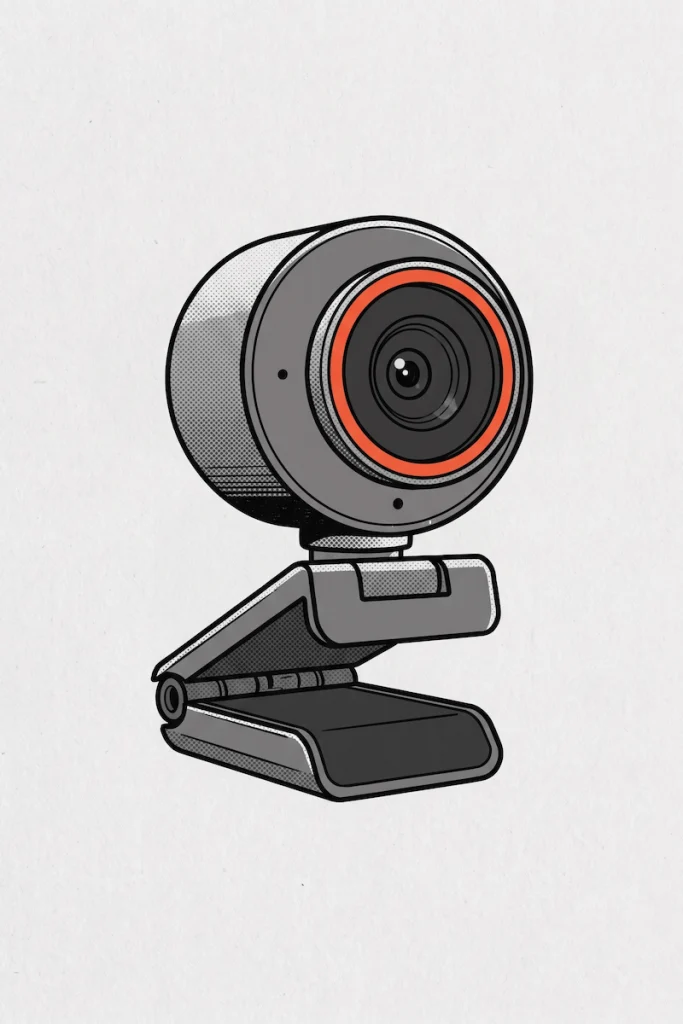
That’s where a creator focused camera earns its place. The Elgato Facecam is built for exactly this: 1080p at 60 frames, so motion looks smoother than it does on a standard webcam, with settings you control through Elgato’s software instead of leaving everything to auto. It’s what a lot of streamers reach for when the C920 starts to feel like the weak link.
If you’re hunting for the best content creator camera or a camera for content creators and your content is mostly you at a desk, this tier is usually where the sensible answer lives. A mirrorless setup is a different category with a different level of hassle, and a good external webcam gets most people most of the way.
Pros
- Smoother 60 frame video, which streaming viewers notice.
- Manual control over the image once you tune it.
- Built for long sessions on camera.
Cons
- No built in mic. You’ll want a separate one, so the home office audio setup guide is worth a read.
- Takes a few minutes in the software to get a good image.
- More camera than a plain meeting needs.
Checkable reason to buy it: it’s the step up when your video is part of the product, not just a window into a call.
Fits you if: you stream, record or run a channel and you’re tired of the camera being your weakest link.
Hassle label: App setup.
Best 4K Webcam: When Resolution Actually Matters (Tier 3)
Meeting apps compress video, so a 4K sensor shows its value when you record, crop or reframe your footage, or simply want a sharper image to start from. The Logitech Brio is the established name here, and it’s the answer if someone told you to “just get a 4K webcam” and you want to know which.
If you want the best 4K webcam for pure image quality, this is a tier worth looking at. It’s also the tier where the smart cams start to make more sense, because the smart ones are 4K as well, and they add movement and intelligence on top.
Pros
- A sharper starting image, especially useful if you crop in.
- A familiar, well supported name.
- Room to reuse your footage in other formats.
Cons
- Most call apps won’t show you the difference.
- Bigger files and heavier on your USB bandwidth if you push it.
- Still a fixed camera. It doesn’t follow you.
Checkable reason to buy it: you recorded something good and you want to crop, reframe or repurpose it without it looking soft.
Fits you if: you produce video content and reuse it.
Hassle label: App setup.
AI Webcam and Auto Tracking Webcam: The Smart Cam Tier
This is the tier that changes what a webcam does, not just how sharp it looks.
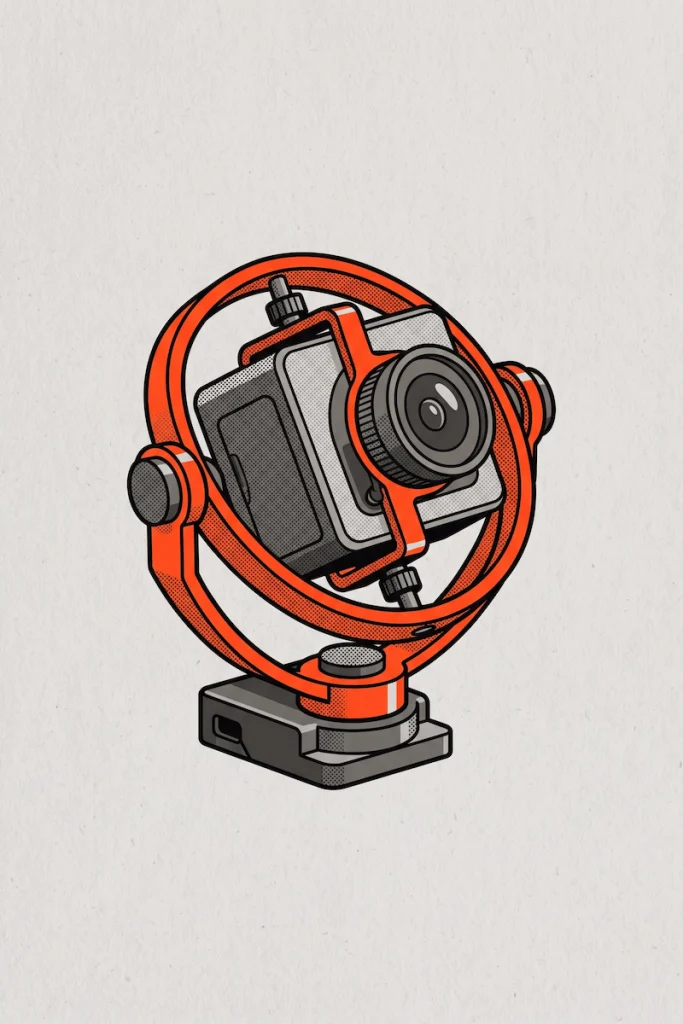
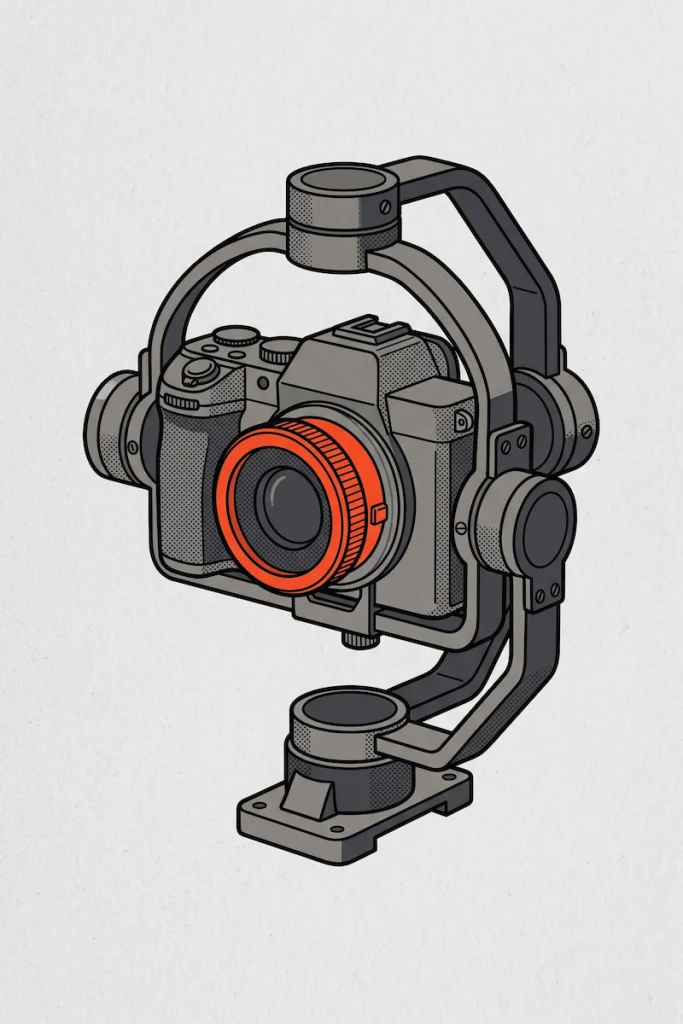
An AI webcam, sometimes called an auto tracking webcam or a PTZ webcam (pan, tilt, zoom), uses AI to find you and keep you in frame. Some do it with a physical gimbal that actually turns the camera. Some do it digitally, by reframing the image. Either way, the camera follows you instead of the other way around.
What the AI Actually Does
- Tracking: the camera follows you as you move, stand up, pace or lean.
- Auto framing: it adjusts the shot so you stay centered and sized right.
- Gestures: a hand signal starts tracking or zooms in, no mouse needed.
- Voice control and voice locking: on some models you can control the camera by voice, and it can turn toward whoever is speaking.
- Presets: save a position and jump back to it. This is the feature people don’t expect to care about and then use constantly.
It’s on-camera processing that handles framing so you don’t have to.
OBSBOT Tiny 3
The OBSBOT Tiny line is the one that put AI tracking webcams on the map, and the Tiny 3 is the latest. It’s a small 4K camera on a motorized gimbal that tracks people, voices and even pets, with gesture and voice control, a three mic array, and presets you can switch by voice.
The standout for creators: it can stream directly from a phone through the OBSBOT Live app, so you don’t need a computer in the loop. For solo creators who shoot, demo, draw, cook or move around, that’s a camera operator you don’t have to hire.
Pros
- Tracking is the headline feature of the Tiny line.
- Small and light, with a better mic setup than earlier models.
- Voice control, gesture control and presets in one camera.
Cons
- You’ll want to spend time in the OBSBOT software to set it up properly.
- Fast, chaotic movement can still confuse the tracking.
- More camera and more setup than a basic meeting needs.
Checkable reason to buy it: it keeps you in frame while you move, so you can present, demo or create without babysitting the shot.
Fits you if: you’re a creator or presenter who moves while the camera rolls.
Hassle label: App setup.
Insta360 Link 2
The Insta360 Link is the other name in this space, and the Link 2 is the one to weigh against the Tiny 3. It’s a 4K webcam with a 2 axis gimbal and AI tracking, gesture control, and a set of modes built for work: DeskView tilts the camera down to show your desk, and Whiteboard Mode finds a board marked with the included corner stickers and straightens and enhances it.
This is the one for the use case I care about most. Say you have a whiteboard behind you. You save a preset for your face and one for the board, and during a meeting or interview you flip between them. No standing up, no turning your laptop around, no awkward “can you see this?”
It also tilts down on its own after a few seconds of inactivity, which works as a privacy cover when you’re not on a call.
Pros
- Whiteboard Mode and DeskView are genuinely useful for interviews, training and demos.
- Manual gimbal control and presets through the Link Controller software.
- Auto tilt down privacy position when it’s idle.
Cons
- Whiteboard Mode needs the corner stickers placed on your board. A small one time setup.
- Tracking can be finicky with fast movement, per reviews of the original Link.
- You’ll spend a few minutes in the app getting presets right.
Checkable reason to buy it: it lets you show a whiteboard or your desk during a call without touching the camera.
Fits you if: you present, interview, teach or demo, especially with a board or a desk in view.
Hassle label: App setup.
Smart CCTV and Home Cameras (No Setup Needed)
Smart cameras aren’t only for your desk. A lot of home cameras and CCTV now ship with AI built in: person alerts, motion zones, a notification when something’s at the door. For a creator with a studio space or a remote worker with a home office they leave unattended, that’s a legitimate use.
The trade off: these cameras are easy because they’re closed. The AI lives inside the brand’s own app, so you get the features with no setup, and you stay inside that ecosystem. That suits most people: you get the benefit without becoming your own IT department.
For the Curious (Optional Reading)
If you like tinkering, there’s another route. Some cameras expose an open video stream (look for RTSP or ONVIF support in the specs before you buy), which means other software can use the feed. Frigate is an open source system that runs AI object detection locally on your own cameras and works with Home Assistant, so detection happens on your own hardware instead of in someone’s cloud. The catch: it takes real setup, and a GPU or an accelerator is recommended.
Hassle label: Tinkerer territory. If that sentence made you tired, skip it. The camera you buy for the desk won’t need any of this.
Which Webcam Fits You
Match the camera to your situation, not to a spec sheet.
- Remote worker on daily calls: the Logitech C920. Plug in, forget it. This is the best webcam for working from home for most people.
- Remote worker who presents or interviews: the Insta360 Link 2, for the whiteboard and desk modes and the presets.
- Hiring manager or anyone interviewing people: same answer. Switching between your face and a whiteboard without moving anything looks more professional than it has any right to.
- Streamer: the Elgato Facecam for the smooth 60 frames, or the OBSBOT Tiny 3 if you move around.
- Creator who moves while shooting: the OBSBOT Tiny 3. It’s the closest thing to a camera operator.
- Media and remote interviews: a 4K camera like the Logitech Brio for a clean image, or a smart cam if you run live segments and need the framing handled for you.
- Not sure yet: the C920 is the safe first buy.
One more thing worth saying. Streaming, gaming, drawing, recording and making things for an audience are work for a lot of people, and they’re also how many people keep their head straight. Hobbies do that, the same way exercise does. A setup that works without fighting you is what keeps a creative habit from turning into one more chore. That’s the other argument for buying something that just works.
Setup Extras That Make Any Webcam Look Better
The camera is only part of how you look on screen.
- Light: a basic key light does more than a better camera will. See the lighting setup guide.
- Audio: your voice matters more than your picture. Start with the home office audio setup guide, or look at the best headset for working from home.
- Mount: a monitor clip is fine. A tripod thread gives you more positions. Gimbal cameras do best on a stable surface.
- The rest of the desk: the home office gear that actually works and the solo content creator tools guides cover the setup around the camera, and the home office setup for remote work guide ties it together.
Grid Picks: Five More Webcams Worth a Look
Five more webcams worth a look, each for a different reader.
1. Logitech C922 The C920’s streaming minded sibling. Same easy, plug and play reliability, aimed at people who stream and want a familiar name. A good pick if you like the C920 but want something built with streaming in mind.
2. Razer Kiyo Pro A creator friendly webcam from a brand streamers already know. A solid pick if your desk already runs on that kind of gear and you want your webcam to match.
3. Insta360 Link 2C The fixed version of the Link, no gimbal, same brand. A good pick if you want 4K image quality and the Insta360 software without the moving parts.
4. OBSBOT Tiny 3 Lite The smaller, more accessible member of the Tiny 3 family. 4K, AI tracking, a tri mic array and voice control, with a smaller sensor than the full Tiny 3. A good way into AI tracking without the flagship.
5. OBSBOT Tiny 2 The previous generation, still a strong AI webcam with the tracking that made the line popular. My pick if you want smart tracking and don’t need the newest hardware.
Which One to Actually Buy
- You just need to stop using your phone for calls: Logitech C920.
- You stream or record content at a desk: Elgato Facecam.
- You want a sharper image to crop and reuse: Logitech Brio.
- You present, interview or show a whiteboard: Insta360 Link 2.
- You move while you create and want the camera to follow: OBSBOT Tiny 3.
Pick the one that matches your day and open the link to see current pricing and reviews.
Related: Home Office Setup for Remote Work